
Initializing systems
Alloy 0
Crew 0/0
Status Booting
Selection
None
Commands
Build
Queue
Research
Status
Mini Map
Your fleetAlliesHostiles
Abilities
Comms
Voice: muted.
Remote Voices
Campaign Objectives
Primary
Secondary
System Booting
0%
Downloading required game assets…
Transmission
Victory
The enemy has been defeated.
After Action Report
Reconnecting...
Attempting to reach the server.
Game Paused
Settings
Audio manager & music library
Display
Language
Auto-detected from your browser. Changes apply immediately.
Audio Manager
5%
60%
90%
Friendly fleet dialogue is captioned in every language. Auto follows the advisor toggle; Always keeps captions on when the advisor is disabled.
80%
Visual Effects
100%
50%
40%
LLM Gameplay
Codex CLI path, model, and authentication are managed in the Admin Console.
Connectivity (STUN/TURN)
Used for voice comms and P2P multiplayer. Leave blank for public STUN. Add TURN for strict NATs.
Music Playback
Dynamic music follows your faction: exploration, base defense, and assault. Original orchestral themes follow your faction and the battle. Songs change without immediate repeats; combat settles after 45 seconds.
Now playing: None
Help
How to play, tech tree, controls, and settings.
Economy, Construction & Production6 tips
  • Mining ships harvest resources, then return their cargo to an owned drop-off. A completed Refinery is a drop-off and automatically supplies one Mining Ship.
  • Build Refineries close to deposits to shorten delivery routes. Asteroids deplete; gas giants require Gas Mining and provide an unlimited deposit.
  • Construction ships orbit active build sites while assembling them. If construction is interrupted, select the builder and choose Resume Construction.
  • Shipyards build miners and combat ships; Research Labs unlock the technology tree. Queue production, cancel individual items, and right click terrain to set a rally point.
  • Ships reserve both alloy and Crew when queued. Main Stations provide the initial crew cap; Starbases add substantial capacity. Crew regenerates up to the available cap, and losing a crew-provider lowers maximum capacity.
  • The command deck opens on the selected unit's useful default: Build for constructors, Research for research stations, and Commands for combat units.
Camera, Selection & Ship Names5 tips
  • Left click selects; drag a box to multi-select. Ctrl/Cmd+click adds or removes units, and double click selects all visible units of the same type.
  • Every ship, station, and turret has a unique name. A selected unit's full name and class appear in its command-deck identity card.
  • Right mouse drag rotates; the mouse wheel zooms; WASD or the arrow keys pan.
  • Minimap: left click to pan and right click to move selected units. To place a team marker, choose Ping, Attack, Defend, Assist, or Scout in the minimap dropdown (Alt+0..4 selects the same presets), then Shift+right-click either the battlefield or minimap. Choosing a preset alone does not place it.
  • Assign control groups with Shift+1..9, or Ctrl/Cmd+1..9 where supported. Press 1..9 to recall; double tap to recenter.
Orders, Stances & Movement5 tips
  • Right click terrain to move or enemies to attack. Armed ships guard friendly ships and most structures; constructors repair allied structures; ordinary ships dock for repair at Shipyards, Advanced Shipyards, and Dreadnought Yards.
  • Hold Alt while right clicking to force an order through a hazard or onto an otherwise protected friendly target. With a controller, hold RB (R1 on Deck) and press X on the battlefield or minimap. Remapped controls use Fleet modifier + Order.
  • Hold (H) keeps position with weapons active; held ships briefly yield around blockers and return to station. Stand Down (X) disables auto-attack; Aggressive (G) pursues threats; Defensive (V) protects the home base or an assigned defend/escort anchor, engages within 160 units, breaks pursuit beyond 220, and returns.
  • Explore scouts and withdraws when attacked. Hunt patrols and engages. Auto Retreat (R) sends critically damaged combat ships to the nearest repair-capable Headquarters, Shipyard tier, or Starbase; mining and construction ships are deliberately excluded.
  • Direct attack orders engage immediately and do not trigger a fleet regroup. Ships use their own attack approach and effective weapon range.
Formations & Targeting4 tips
  • Choose Spread, Line, Wedge, or Range Rows; press F to cycle through them. The selected idle fleet forms up immediately, and a fleet already moving together reshapes without losing its destination.
  • Right-click a location to move immediately with the fleet's current spacing, or an enemy to attack. Neither order waits for formation assembly or requires Aggressive stance. Only formation buttons regroup the fleet.
  • Range Rows puts ships with equal effective range on the same row and keeps longer-range ships behind shorter-range screens.
  • Set Target Priority 1, 2, and 3 to choose whether ships focus turrets, ships, or stations first. This order is faction-wide: changing it from one selection updates targeting for every armed ship you control.
Production & Structure Commands4 tips
  • Construction ships can toggle Auto Repair to maintain nearby allied stations and turrets automatically.
  • Shipyards can default newly built ships to Spawn Hold or Spawn Defensive before sending them to the rally point.
  • Decommission selected structures to recover two thirds of their original cost.
  • Starbase Command unlocks the Starbase: a heavily armored stronghold, resource drop-off, crew provider, and constructor producer for valuable lanes and gas giants.
Combat, Abilities & Boarding9 tips
  • Eligible abilities can be set to Auto for tactical use by the unit, or activated manually from the Abilities tab.
  • Support-class vessels intercept long-range fire and can boost allied shield regeneration and repair nearby hulls after Shield Matrix research. Equivalent classes keep these capabilities across every faction.
  • Bombard locks artillery onto a chosen point inside extended range; choose Stop Firing to clear it. Support screens can intercept incoming long-range projectiles.
  • Subsystem Disrupt is a short-range area effect: it slows hostile ships, while affected hostile ships and structures deal less weapon damage and fire less often for its duration.
  • The Nacre-only Control Requisition targets an enemy ship after approaching and breaching its shields. It damages a target above the capture-health threshold and captures a sufficiently weakened ship, restoring part of its hull and shields under Nacre control.
  • Flagships can disrupt hostile subsystems and activate their faction-named shield reflector. Nacre capital vessels carry Control Requisition in addition to their unique Uber-class weapons.
  • Board automatically approaches and breaches a hostile ship or station. The ability button shows approach, shield breach, capture progress, and estimated success.
  • Once boarding begins, allied weapons hold fire on that target. Commit more boarding-capable crew if the estimate is low; Board can also reinforce an allied crewed target.
  • Captured stations and construction ships retain their native faction technology and production, allowing their original faction's units and structures to be built under new ownership.
Cloak, Detection & Hazards5 tips
  • After Cloaking Field research, use the Abilities tab to activate Cloak on a capable scout. Attacking or firing immediately decloaks that ship and starts the Cloak cooldown.
  • Cloaked contacts must be inside an active detection field to become visible and targetable. Detection reveals the contact while covered; it does not cancel the enemy's active Cloak.
  • Sensor Sweep, Tachyon Ping, and automatic Beacon Array pulses reveal cloaked ships. Place beacons around chokepoints, bases, and mining lanes.
  • Research Nebula Tachyon Sensor Suite to give support-class ships an automatic, performance-friendly detection pulse in every faction.
  • Ion nebulae disable shields; radiation nebulae damage hull over time. Hold Alt and right click to deliberately route through a hazard.
Flagships & Uber-Class Weapons4 tips
  • Flagship reflectors create a pulsing polarized shield that reflects incoming damage while active.
  • Uber-class ships have faction-specific powers: Earth Alliance Continuity Wave/Keel Lance, Vharuun Mandate Shock/Torsion Breaker, Ilyr Convergence Pulse/Terminal Vector, and Nacre Exclusion Wave/Metric Severance.
  • A bouncing chevron marks an Uber ship while its superweapon is charging or firing. The Abilities button also reports the remaining charge or firing time.
  • Flagship Program requires Quantum Torpedoes and Starbase Command, then unlocks the unique Uber Shipyard and Uber-class ship.
Allies, Shared Support & Comms6 tips
  • A working comms link shares allied live vision and explored space, enables resource transfers, and allows allied AI support requests.
  • A campaign comms blackout suspends shared vision, transfers, and AI coordination without ending the alliance. Complete the authored restoration objective, or use an allied construction ship to repair the affected ally's Main Station, to restore the link.
  • Use Comms for text or voice radio on Allies or All channels. Dialogue and voice lines are queued so they do not talk over one another.
  • Choose Ping, Attack, Defend, Assist, or Scout from the minimap dropdown, then Shift+right-click the battlefield or minimap to place it and direct allied AI attention. Alt+0..4 selects the preset but does not place the marker.
  • Open the scoreboard with Tab to send resources to an ally or request resources. Allied AI can also request reinforcements and resource support.
  • Allies coordinate defenses around bases and valuable deposits, respond to help requests, and can support a shared attack without changing ownership of units.
Maps, Deployment & Game Modes7 tips
  • Single-player and multiplayer planners support up to 16 participants and show the selected battlefield's capacity and numbered spawn points. Choosing more AI players automatically selects the smallest suitable map.
  • Choose a human or AI participant from the assignment dropdown, then click an open numbered spawn on the map; the participant's Spawn dropdown provides the same assignment.
  • Map previews use distinct symbols and colors for spawns, resources, gas giants, and nebula hazards. Occupied spawns cannot be assigned twice.
  • Team, faction, color, AI type, difficulty, and starting resources are configured per participant before launch. Team 1 through Team 8 can each contain humans and AI; matching team numbers are allied. Auto adapts; Technology preserves advanced firepower; Defensive holds reserves; Aggressive raids; Economist expands and shares surplus; Fleet Admiral coordinates mixed fleets and pincers.
  • For multiplayer, Host creates a room and code; Join enters that code. Human players choose Ready in the lobby, and the host launches when everyone is ready. Public rooms can also be joined from the browser.
  • Ranked Match enters matchmaking and uses locked competitive lobby settings. Spectate joins a room without a faction: spectators can follow the live battlefield but cannot issue commands, claim a spawn, ready, or pause.
  • The Map Library supports search, filters, favorites, ownership actions, and battlefield sharing. Create or Edit opens generation and manual placement with distinct symbols, select/erase tools, undo/redo, validation, and save controls.
Campaign Missions6 tips
  • Read the mission briefing before taking control; it identifies named units, required actions, risks, and any deadline.
  • Objectives appear in the Campaign panel. Required regions and targets are labeled in the world and on the minimap; follow numbered markers in order when specified.
  • Timed objectives place their countdown and failure condition in the top bar. Entering a destination before its objective activates still counts when the prerequisite completes.
  • Campaign dialogue and narration play in sequence. Expand Comms or choose Show Voice to review messages you missed.
  • Missions unlock in order: win the preceding mission to unlock the next one. Attempts, last result, last-played date, and completion are retained; signed-in profiles synchronize that progress across devices.
  • After a defeat, choose Retry Mission or Return to Campaign. A completed mission remains replayable. The After Action Report summarizes each faction's ships, stations, and turrets built, lost, and destroyed before you retry or return.
Pause, Save, Resume & Observe6 tips
  • Press P or Pause to pause. In multiplayer, the pausing player can resume; other players receive the vote option after its delay.
  • Save stores the current supported match on the server; use Resume Saved or the matching home-screen resume option to continue it later.
  • Surrender ends the match for your faction. If your force is eliminated while allied teams remain, Observe lets you watch without issuing commands or pausing.
  • Multiplayer observers join without a faction, cannot command units, and can follow the live battlefield.
  • Completed matches record the latest replay locally. Choose Home → Watch Last Replay to review it; replay mode is non-interactive and replaces the previous last-match recording when a newer match finishes.
  • A skirmish faction remains operational with a living non-turret station or a viable constructor that can rebuild. Turrets alone do not prevent elimination; the last operational team wins.
AI & LLM Controls3 tips
  • Easy, Normal, Hard, and Insane alter AI pressure and execution. Doctrine selects Auto, Technology, Defensive, Aggressive, Economist, or Fleet Admiral strategic behavior for each AI slot.
  • LLM Chat Personas and LLM Gameplay AI are separate Settings toggles. Gameplay can use the configured model and thinking override while the deterministic engine validates and executes legal orders.
  • Enable LLM Gameplay Console Logs for diagnostics; session and lifetime usage counters show token consumption. The production Codex runtime, model, and authentication are administered server-side.
Settings & Visual Preferences5 tips
  • Weapon ranges are hidden by default. Enable Show Weapon Ranges in Settings when planning firing lanes.
  • Visual preferences, range visibility, audio levels, and music choices are saved to the signed-in profile and restored across sessions.
  • Tune bloom, SSAO, color grading, brightness, faction tint, and other effects without changing simulation rules; performance statistics are optional.
  • Theme offers Auto, Dark, and Light; Auto follows the operating-system preference. Language changes supported interface text without changing match rules.
  • The Fleet AI advisor can be enabled independently. Advisor captions support Auto, Always, and Off: Auto follows the advisor toggle, Always preserves friendly captions even when the figure is disabled, and Off hides them.
Music, Voice & Connectivity3 tips
  • Music can autoplay the current faction's catalog or use a custom playback list. Enable or disable tracks, reorder them, choose shuffle, save a named playlist, Activate it later, or return to faction autoplay.
  • Music, sound effects, dialogue, and voice-chat volumes are separate. Advisor dialogue captions do not change the voice-chat radio channel.
  • Public STUN is the default for voice comms and peer-to-peer multiplayer. Configure TURN credentials in Settings when a strict NAT or firewall prevents a direct connection; administrators may lock these ICE settings for the server.
Technology Path5 tips
  • Sensor Grid opens Recon, detection, Cloaking Field, Hull Armor, Torpedo Systems, Artillery Range, Gas Mining, and Advanced Research branches.
  • Hull Armor unlocks Heavy Cruisers and Board; Artillery Range unlocks Artillery and Bombard.
  • Advanced Research unlocks advanced research stations; Shield Matrix unlocks support ships, and Beacon Pulse unlocks Beacon Arrays.
  • Advanced Shipbuilding unlocks the Advanced Shipyard and Flagship; Quantum Torpedoes unlocks the Quantum Torpedo Turret.
  • Starbase Command unlocks Starbases and completes one requirement for the Flagship Program.
Leaderboard
Top commanders across all matches.
Loading...
Commander Profile
Rating, stats, and match history.
Account
Checking sign-in status...
Security Question
Loading...
Match History
Admin Console
Server configuration and SSL certificates.
Checking permissions...
Server Dashboard
Game Debug
Only affects your client while in-game.
Codex CLI & Auth
Codex status not loaded yet.
Save or refresh to inspect the server Codex CLI.
Codex Live Access
Creates a separate, expiring, scoped credential for the repository-owned rts-live skill. It does not grant an RTS login session.
Scoped live tokens not loaded yet.
No token inventory loaded.
Deploy to Jetson
Runs from /mnt/nvme/rts: git pull, npm ci/install, build, and service restarts.
Deploy auth settings not loaded yet.
No deploy job yet.
No deploy run yet.
SSL Certificates
Loading...
ICE / TURN
Loading...
ICE Trace
No trace data yet.
User Management
Server Logs
Loading...
Feedback
Campaign Studio
Revisioned story, mission, cinematic, audio, simulation, and publishing workspace.
Draft Revision 1 No unsaved changes
0 missions 0 blockers 0 warnings
Sol · High Architect Terra · High Missions Sol · XHigh Critic Luna · Low Gameplay
Production Pipeline
Every phase leaves a resumable artifact. Publish remains locked until maps, media, headless feasibility, rendered cinematics, objective clarity, real-UI playtesting, and final review pass.
Ready to build
1Story bibleSol · High
2Mission matrixTerra · High
3Mission authoringTerra · High
4CompileDeterministic
5MapsPublic + reachable
6MediaVO · music · SFX
7FeasibilityHeadless economy + routes
8CinematicsEvery rendered shot
9ObjectivesFirst-player clarity
10Live playtestReal UI to AAR
11ReviewSol · XHigh
12PublishAtomic revision
AI Campaign Director
Ask for a new campaign or targeted edits; the builder applies structured JSON when the AI returns it.
Codex model and authentication are managed in Admin > Codex CLI & Auth.
Tell the AI what to build, then ask for edits mission by mission.
Campaign Snapshot
No campaign loaded.
Campaign Controls
Build is the default workflow. Use chat for most edits, then open a studio only when you need surgical control.
No campaign loaded.
No validation run yet.
Mission Studio
Mission details are isolated in Mission Studio so the main campaign workflow stays simple.
Mission Studio
Loading...
Cutscene Composer (AI)
Tip: Avoid copyrighted characters, real people, and face reference images. If a job is blocked, try "No reference" or use helmeted/silhouette character refs.
No cutscene plan yet.
No cutscene plan generated yet.
Character References
No characters loaded.
No characters yet.
Select a character to view references.
Video Library
No video selected.
No videos loaded.
Single-clip prompt helper. For multi-clip cutscenes, use Cutscenes > Cutscene Composer (AI).
Used for narrator or generic lines when no faction-specific voice is selected.
Force regenerate existing assets
Asset generation runs on the server. Keys are stored server-side; leave empty to keep existing. Cost estimates use the rates above; adjust them to your current pricing.
Asset generation idle.
No failed cutscene videos.
Asset Inventory (Expected vs Generated)
No inventory check run yet.
Generate or load asset prompts, then refresh inventory.
Audio 0/0
Video 0/0
ETA: --
Validate and export the current pack. Use Copy JSON or Download in the command bar.
Avoid copyrighted characters, real people, or face images. Keep prompts focused with one clear camera move and action beat per clip.
Script format: campaign + episode metadata with missions, objectives, and AI slot hints. Generate Script (AI) uses Admin > Codex CLI & Auth; Load Script Template starts from the current pack. Asset Draft captures voice/cutscene items; Asset Prompts outputs ElevenLabs/Sora templates. Apply Assets to Pack merges asset draft/prompts into the pack JSON.
Script & Pack
Assets
Generation
Space Armada: Lacuna Front
Command a fleet in co-op or solo skirmishes.

Command your fleet. Shape what comes next.

Build bases, research technology and command fleets. Explore campaigns, skirmishes and custom battlefields. NTR Studio wants your honest feedback.

Welcome, Commander
Your fleet is ready. An account is optional.
Security Question
Space Armada: Lacuna Front
Command a fleet in co-op or solo skirmishes.
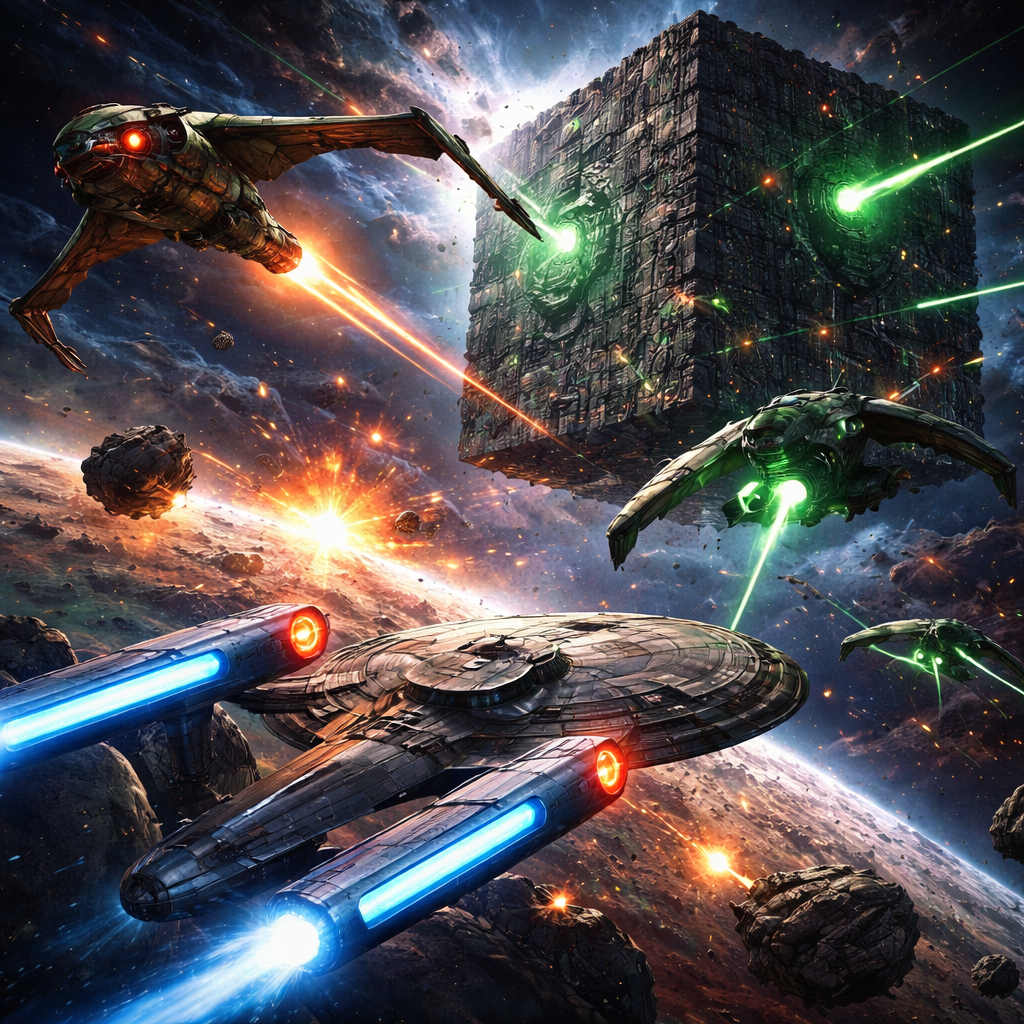
Continental Dreadnought rendered in Space Armada
Deploy
Continue
Intel
Stats
Lifetime service record.
Record
Units
Academy
Learn to command with each faction. Pick one and start its training.
Story campaign Beta · In development
The Open Horizon
Four acts. Forty missions. One route open to every people.
Available Missions
Mission Details
Select a mission.
Map Library
Browse, filter, and share custom battlefields.
Map Editor
Saved state
Details
Generator

Build a balanced, evenly spaced layout from these rules.

Manual
Ready to save
Single Player
Skirmish against AI.
Multiplayer
Host or join a 16-player lobby.
Multiplayer
Join or resume with a code
Lobby
Room Code: ----
Match Settings
Teams & Factions
Deployment Map
SYNCED
Select a player, then choose a numbered spawn on the map.
Lobby Chat
Voice: muted.
Remote Voices
Reference Preview
Reference preview
In-Engine Cutscene Preview
Safari Not Supported
Space Armada relies on high-performance WebGL features that Safari/WebKit does not currently deliver at playable speed. Please use Chrome, Edge, or Firefox for the intended experience.